Mobile
TasksPage on a phone is the same list, laid out as cards. Nothing is a separate app to keep in sync: open the address in the browser or install it to your home screen and it works offline as well. Android users can also find TasksPage in Google Play, which wraps the same page.
Long-pressHold a task ~half a second → context menu: move, mark important, delete.
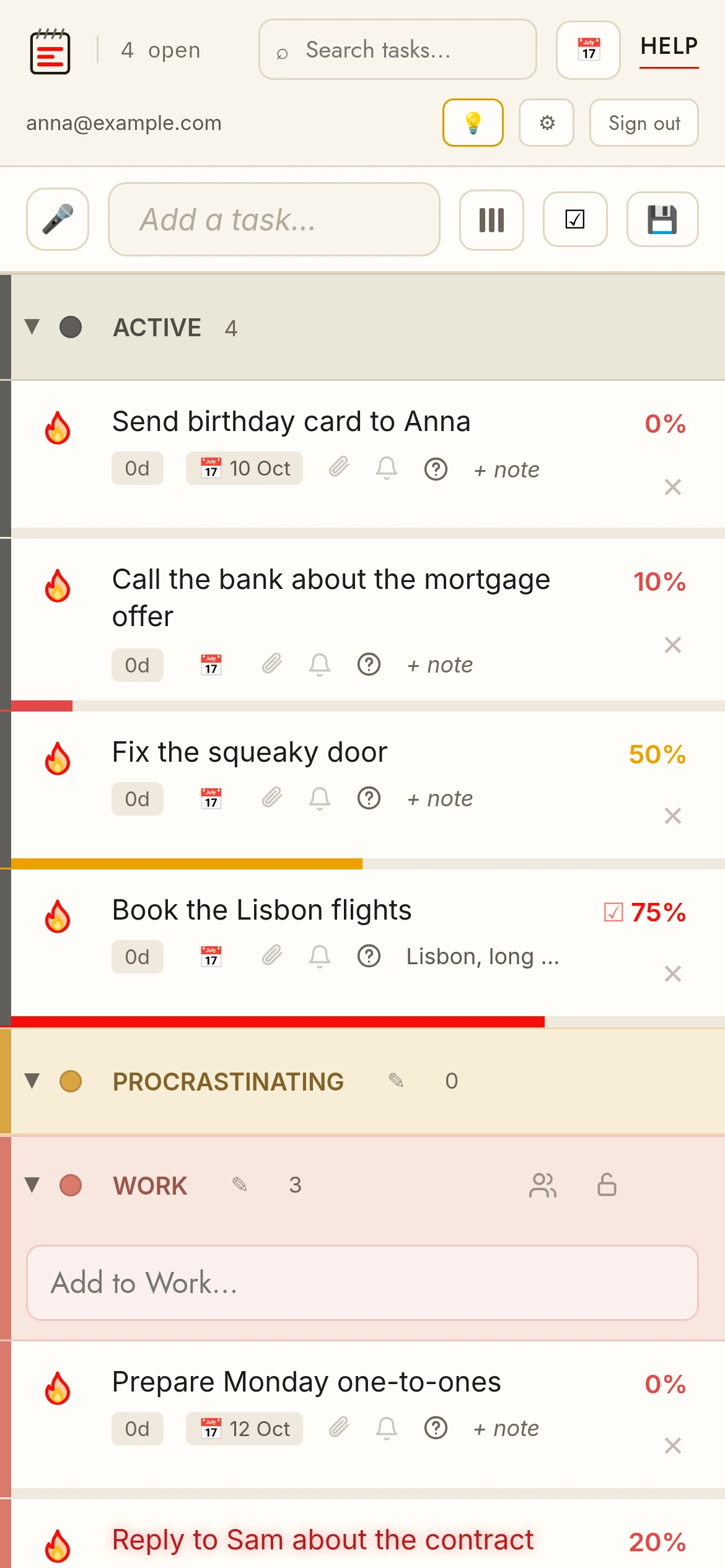
LayoutTasks show as cards; progress is the thin strip along the card's bottom edge.
More roomScrolling down the list tucks the header away; scroll up (or return to the top) and it slides back.
InstallIn Chrome or Safari choose “Add to Home Screen” (or the install prompt). The installed app opens full-screen, works offline and gets reminders.
Android appTasksPage is on Google Play. The app opens the same page as the website: sign in with the same account and your tasks are there.

Share to TasksPageOn Android, share a link or text from any app and choose TasksPage: it becomes a new task with the link already attached.
Card view settingsThe columns button lets you hide notes, attachments or age on the cards (the ❓ for open questions always stays next to the note); phone and desktop settings are stored separately.