Google Calendar sync: your tasks in their own calendar
Connect Google Calendar and every open task with a due date or a reminder appears in a separate TasksPage calendar, and stays up to date as you edit, snooze, repeat or finish it. The sync is one-way: TasksPage writes to that one calendar and cannot see your other calendars. It is part of Pro, which is free for your first 3 months, no card needed.
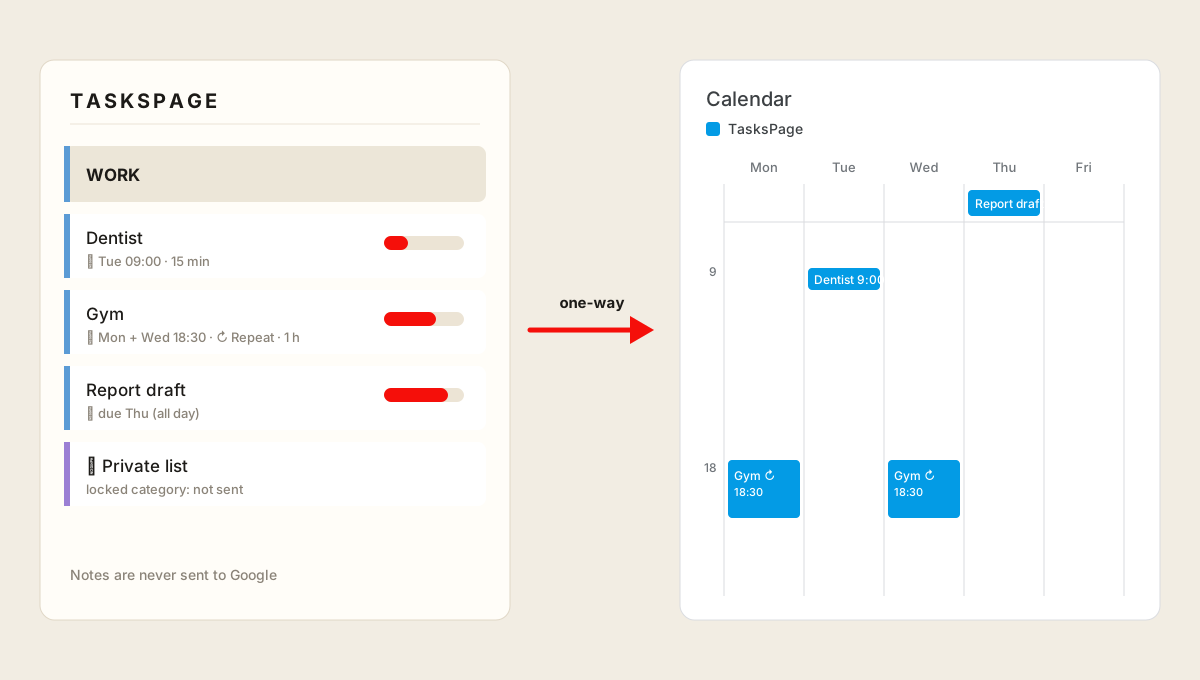
What appears in Google Calendar
- A task with a due date becomes an all-day event on that date.
- A task with a reminder becomes a timed event at the reminder time. It lasts 15 minutes unless you pick another length in the reminder dialog: 30 minutes, 1 or 2 hours, or any length up to 12 hours.
- Repeating tasks (Repeat: chosen weekdays such as Mon + Wed, every few days or weeks, monthly or yearly) become one recurring event series. Ticking off an occurrence removes just that occurrence; the rest of the series stays.
- When you finish or delete a task, its event goes. Snoozing a reminder moves the event.
One-way, on purpose
Changes flow from TasksPage to Google, never back. If you move or delete one of its events in Google Calendar, TasksPage puts it back the way the task is in your list on the next sync, so your list stays the single source of truth. To change a task, change it in TasksPage. Edits are sent within seconds, with a safety check every 10 minutes.
Everything lands in a calendar called TasksPage, separate from your own calendars. You can show, hide or recolour it on its own, and nothing is mixed into your work or family calendars.
What is never sent
- Notes are never sent. An event carries the task name, a link back to the task and any links that are in the task name.
- Password-protected categories are skipped. If you still want that time blocked, choose “Private task”: the event then has no name and no link.
- You choose which categories sync. Categories other people have shared with you are never copied into your calendar.
Privacy: one calendar, nothing else
TasksPage asks Google for a single permission, calendar.app.created: it may create its own calendar and manage the events in it. It cannot see, read or change any other calendar or event in your Google account. The access token is stored encrypted on our server and used only for the sync. Disconnecting revokes it at Google, and you decide whether the TasksPage calendar is kept or deleted. More in the privacy policy.
How to connect
- Sign in to TasksPage (a free account is needed, so the connection has somewhere to live).
- Open Account & settings → Integrations → Google Calendar and choose Connect Google Calendar.
- Pick your Google account and allow access to the TasksPage calendar.
- Choose the categories to sync and check the time zone (taken from your browser, changeable).
Google Calendar sync is a Pro feature (€1.99/month or €19.99/year). Every new account gets Pro free for its first 3 months, no card needed, so you can try it straight away: see pricing. Prefer a file? The calendar export (.ics, also Pro) downloads the same tasks once, for Apple Calendar or Outlook.
Key facts
| Price | Free forever. Pro is optional: €1.99 per month or €19.99 per year, billed in euro worldwide. Everyone gets Pro free for the first 3 months, no card needed. |
|---|---|
| Sign-up required | No. An account is only needed for sync across devices, attachments and sharing. |
| Works offline | Yes. Installable web app (PWA); offline edits sync when you are back online. |
| Platforms | Any modern browser on desktop, tablet and phone, plus an Android app on Google Play. No iPhone app (installable PWA via Add to Home Screen). |
| Attachments | Free: up to 5 MB per file, 50 MB in total. Pro: up to 25 MB per file, 5 GB in total. |
| Sharing | Share a colour category with up to 10 people, free. |
| Languages | English, German, Spanish, French, Portuguese, Russian. |
| Privacy | No ads, no tracking without your consent. Data encrypted at rest; export or delete everything from the app. |
Related pages
Frequently asked
Is the Google Calendar sync two-way?
No. It is one-way: TasksPage writes your tasks to its own TasksPage calendar. Events you create in Google Calendar do not become tasks, and changes made to its events in Google are replaced by the task as it is in TasksPage on the next sync.
Can TasksPage read my other calendars?
No. It only has Google’s calendar.app.created permission, which covers the one calendar TasksPage created. Your other calendars and events are invisible to it.
How long is a reminder event?
15 minutes by default. You can set another length per task in the reminder dialog: 30 minutes, 1 or 2 hours, or a custom length up to 12 hours. A task with only a due date is an all-day event.
Do repeating tasks work?
Yes. A task with Repeat, for example every Monday and Wednesday, every 2 weeks, monthly or yearly, becomes a recurring event series in Google Calendar. Ticking off one occurrence removes only that occurrence.
Is it free?
Google Calendar sync is part of Pro (€1.99/month or €19.99/year). Everyone gets Pro free for their first 3 months, no card needed. Connecting needs a free account.
How do I disconnect?
Account & settings → Integrations → Google Calendar → Disconnect. TasksPage revokes its access at Google, and you choose whether to keep or delete the TasksPage calendar.
One page. No sign-up. Start now.
Open TasksPage