Everything the page can do.
Short and complete. Desktop unless marked mobile.
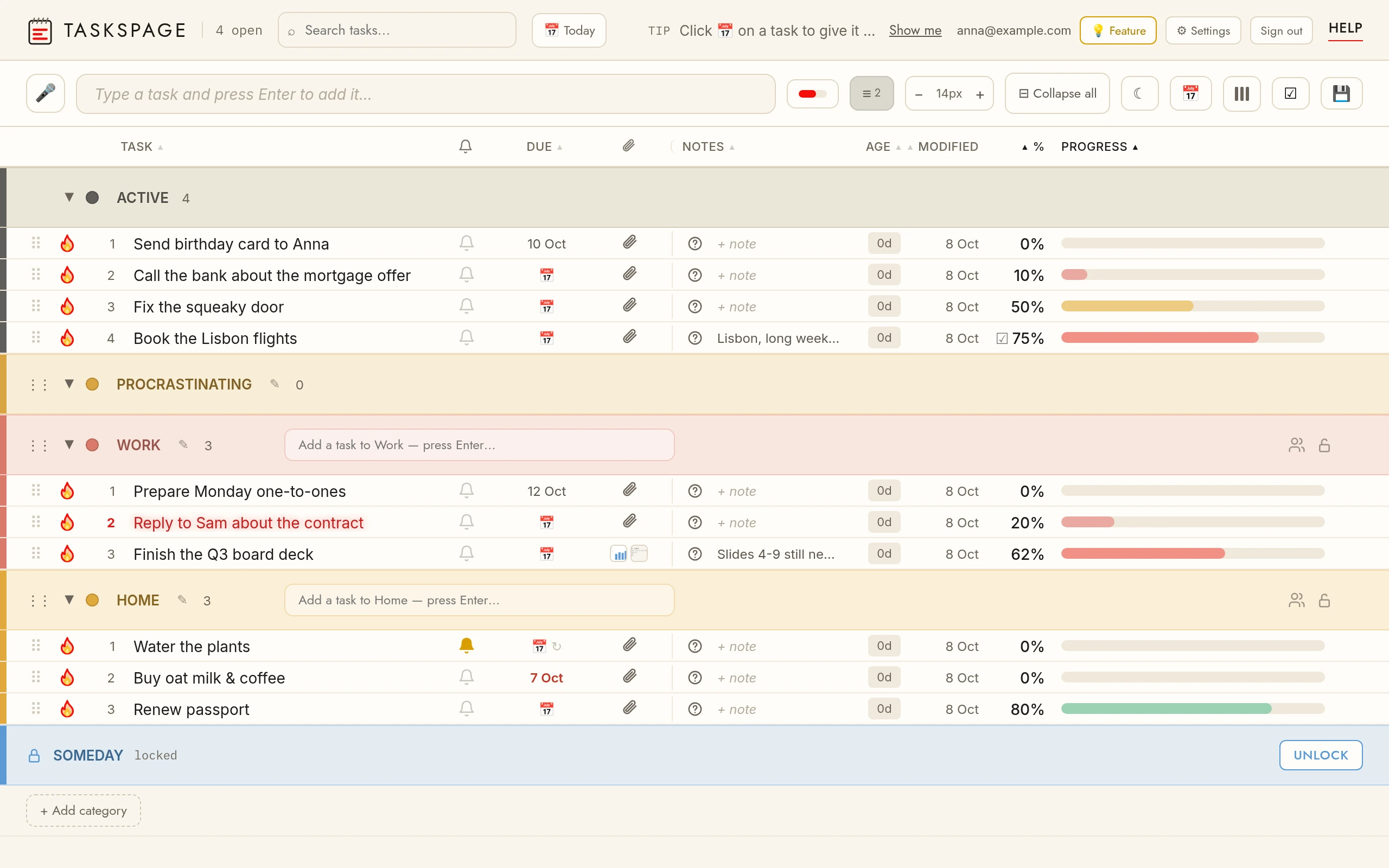
Tasks
↗Add a taskType in the top bar, press Enter. Each category header has its own add bar too.
Edit a taskClick the name. Enter saves, Esc cancels.
Insert a linkWhile editing a name, note or question, highlight the text — a Link button appears above it; tap it and enter the URL. Desktop also has Ctrl+K. Bare URLs you type become clickable on their own.
Delete a taskHover the row and click the × on the right, or right-click → Delete task. Mobile: × is always visible, or long-press → Delete.
Mark importantClick the row number on the left, or right-click → Mark important. Mobile: long-press → Mark important. The name pulses red and glows until unmarked or done — impossible to miss. Pro feature.
Right-click menuRight-click any row for a quick menu: move between sections/categories, mark important, delete. Mobile: long-press the row.
ReorderDrag a task by its row and drop it where you want it, inside a section or into another category. The order is kept per list.
SearchThe search box filters the whole page as you type, matching task names, notes and questions. Clear it to see everything again.
Voice entry (Pro)Tap the microphone in the add bar and dictate. Filler words such as “um” and “so” are dropped before the task is saved.
My Words (Pro)Teach dictation your names and jargon so dictated tasks spell them your way — see My Words.
Natural-language add (Pro)Type “call the dentist tomorrow at 9” and TasksPage sets the reminder for you, leaving “call the dentist” as the task name.
Progress
↗Set progressDrag the progress bar — snaps to 5%.
Exact valueDrag the % number up/down to scrub, or click it and type. Mobile: tap the % and type.
From a checklistWhen a task's note has checklist items (the ☑ button in the note toolbar), its % follows them: ticked items ÷ all items, rounded — three items give 33, 67 and 100%. Question lines and plain lines don't count. While there is a checklist the % shows a ☑ and can't be dragged or typed; remove every checklist item and the % is yours again, starting from its last value. Not for repeating tasks: their % stays manual. Free.
SortClick a column header to sort by it; click again to reverse.
Auto-sortTasks sort by progress inside their section, so the ones closest to finished sit together and the untouched ones stay visible at the bottom.
100% is not done yetA task at 100% stays where it is until you complete it with the checkbox or the flame; then it moves to Done and can be undone from there.
Mobile stripOn a phone the progress bar becomes the thin strip along the bottom edge of the card; tap the percentage to type an exact value.
Completing
↗Burn / tickThe flame burns a finished task away with fire; checkbox mode crosses it out. The top-right toggle switches modes — it shows the mode you would switch to.
Undo doneOpen the Done section and uncheck the task — it returns to Active.
UndoAfter completing or deleting a task a small bar shows for six seconds with Undo. Tap it and the task returns exactly as it was.
Done sectionCompleted tasks collect in Done at the bottom of the page, newest first. Collapse the section to hide them; they remain searchable.
Recurring tasksCompleting a repeating task finishes only this occurrence: a copy is kept in Done as history (marked ↻ with its date) and the task itself comes back for the next one — its reminder and due date move on. Undo right after reverses both.
Notes, questions, attachments
↗Status noteClick + note on a row to jot a note. Short notes edit inline; longer ones open in a pop-up editor. Notes show on the row and are searchable.
QuestionsQuestions live inside the note. Start a line with ? (or tap ❓ Question in the note editor) to make it a question — the task shows a red ❓ until you tick the box in front of the line to mark it answered. Hover or tap the ❓ on the row to see how many are still open.
Attachments 📎Click the paperclip on a row. Paste a screenshot with Ctrl+V, drag & drop files, or click to browse. Images, PDF, Excel, Word. Needs a free account (files are stored with your synced list).
Download allIn the attachments pop-up, ⬇ Download all saves every file on the task at once.
LinksHighlight a word in a note or question and use the Link button (or Ctrl+K on desktop) to attach a URL, so the page never fills with long web addresses.
Search inside notesThe search box matches note and question text as well as task names, so a task is found by what you wrote about it.
Attachment limitsFree: 5 MB per file, 50 MB in total. Pro: 25 MB per file, 5 GB in total. Images, PDF, Excel and Word files are accepted; the app tells you before an upload that would not fit.
Reminders
↗Set a reminderClick the 🔔 bell on a row. Pick a quick option (Tonight, Tomorrow, Monday) or set any date and time — the preview shows how far away it is. The bell turns yellow when scheduled.
Smart addType the time right in the new-task box — "pick up keys at 22:00", "call mom tomorrow 18:30", "stretch in 30 min", "10pm", "on monday". A chip under the box shows the detected reminder; Enter adds the task with it, the chip's × (or Esc) keeps the text as typed. Pro feature.
RepeatIn the same popup, tick the days the task repeats on (Mo–Su): none = one time, Mon + Wed = every Monday and Wednesday, all seven = every day. More options adds every N days or weeks, hourly, monthly (same date or e.g. the 1st Sunday) and yearly.
When it firesYou get a notification on every device where you allowed them — even with the site closed. Clicking it opens your list. A one-time reminder then shows a red bell until you snooze it (1 hour / tomorrow) or remove it, so you can't miss it.
NotificationsYour browser asks permission the first time you set a reminder — allow it to get popups. iPhone/iPad: first add TasksPage to your home screen (Share → Add to Home Screen) and open it from there; Safari only delivers notifications to installed pages. Without permission, reminders still work inside the app (red bell).
Google CalendarReminders can also show up in Google Calendar, in their own “TasksPage” calendar, for the reminder’s duration; repeating ones as a series. One-way, Pro. How Google Calendar sync works.
Due dates & recurring
↗Due dateClick the due-date cell (📅) on a row and pick a date. Overdue tasks show the date in red; clear the date to remove it. Free on every plan.
Recurring taskRepeat is set in the reminder popup (🔔 → Repeat). A task with a due date and a Repeat rolls its due date forward with each occurrence; the due cell shows ↻. Pro feature.
Today viewThe Today chip next to the search box filters every section down to tasks due today or earlier, so the morning starts with one short list.
OverdueA due date in the past turns red on the row and on the phone card. Move it or complete the task and the colour goes back to normal.
Due vs reminderA due date is a date on the row; a reminder is a notification at a chosen time. A task can have one, the other or both.
Google CalendarTasks with a due date can appear as all-day events in their own “TasksPage” calendar in Google Calendar, and move when the due date moves. One-way, Pro. How Google Calendar sync works.
Sections & categories
↗SectionsActive → Procrastinating → Done. A task still sitting in Active moves to Procrastinating by itself 30 days after it was added — tasks you have filed into a category stay where you put them.
Move a taskDrag the row onto a section or category header, or right-click → Move to. Mobile: long-press → Move to.
Custom categories+ Add category at the bottom — 5 on the free plan, unlimited with Pro. Click the name to collapse/expand, ✎ to rename, the colour dot to recolour, × to delete (its tasks return to Active).
Password-protectClick the padlock on a category to set a password. Its tasks are then hidden — not even loaded into the page — until you enter the password. Unlocking lasts until you close the browser. There is no recovery if you forget the password.
Rename sectionsProcrastinating and Done can be renamed and recoloured the same way.
Auto-lockIn ⚙ Settings set Auto-lock protected categories to a number of minutes. A category you've unlocked re-locks itself after that long with no activity — so a forgotten open tab doesn't stay exposed.
Share a categoryClick 👥 on a category and invite someone by email. After they accept (a free account is needed), you both add, edit and complete its tasks in sync. Only the owner can rename, lock or manage members; members can leave anytime.
View
↗Progress bar styleThe bar button cycles: separate column → tinted into the task name → hidden.
Row densityThe ≡ button cycles comfortable / condensed / compact.
ColumnsThe ▮▮▮ button shows/hides columns. Drag column headers left/right to reorder them. Reordering and hiding columns is a Pro feature; your layout is kept separately for phone and desktop.
Expand / collapse allThe ⊞ / ⊟ button opens or closes every section and category at once. Desktop.
Text sizeThe − 19px + stepper sets the task text size, one pixel at a time; click the number to go back to automatic (it then follows row density). Mobile: the stepper is at the bottom of the ▮▮▮ menu.
Dark modeThe ☾ button switches the app to a dark theme (and ☀ back to light). On mobile it's in the ▮▮▮ menu, under Age. Your choice is remembered and, once signed in, follows you across devices. Free.
Calendar exportThe 📅 button downloads your tasks that have a due date or reminder as an .ics file — open it to add them to Apple Calendar, Google Calendar or Outlook. Reminders become timed events with an alert; recurring tasks repeat. Pro feature.
Google Calendar syncAccount & settings → Integrations → Google Calendar → Connect. Tasks with a due date or a reminder then appear in their own “TasksPage” calendar and stay up to date: all-day on the due date, or at the reminder time for the reminder’s duration; repeating reminders become recurring events. One-way — edits in Google don’t come back. Pro feature. More.
Per-device viewEach device remembers its own view — columns, density, text size, theme, bar style — and keeps it across refreshes. Your phone and laptop can look different and stay that way.
Save your viewThe 💾 button saves the current view to your account. Each device keeps its own; this saved view is only the starting point a brand-new device you sign in on will use. Needs a free account. Pro feature.
SearchThe search box filters by task name and note text. × clears.
Account & sync
↗No accountYour list is saved on this device automatically. Nothing to set up.
Sync⇅ Sync → create a free account. Your current list becomes the account and follows you on every device. Attachments require this.
Free Pro (3 months)Every new list and account gets Pro free for 3 months, no card needed — the end date is in Settings → Plan. Afterwards you are on the free plan unless you subscribe; nothing is deleted. Reminders, Google Calendar sync and attachments need a free account, and attachments keep the free limits (5 MB per file, 50 MB) until you pay.
Request a featureSigned-in Pro users get a 💡 Feature button in the account row — tell us what's missing and we build reasonable requests within a week.
SettingsThe ⚙ Settings button opens your account: change password, plan, app language, light/dark theme, auto-lock, data export and account deletion — all in one place.
Mobile
↗Long-pressHold a task ~half a second → context menu: move, mark important, delete.
LayoutTasks show as cards; progress is the thin strip along the card's bottom edge.
More roomScrolling down the list tucks the header away; scroll up (or return to the top) and it slides back.
InstallIn Chrome or Safari choose “Add to Home Screen” (or the install prompt). The installed app opens full-screen, works offline and gets reminders.
Android appTasksPage is on Google Play. The app opens the same page as the website: sign in with the same account and your tasks are there.

Share to TasksPageOn Android, share a link or text from any app and choose TasksPage: it becomes a new task with the link already attached.
Card view settingsThe columns button lets you hide notes, attachments or age on the cards (the ❓ for open questions always stays next to the note); phone and desktop settings are stored separately.
My Words
↗What it does (Pro)Settings → My Words: add the names and words dictation gets wrong (colleagues, companies, jargon) and, if you know it, how it mishears them — e.g. Kowalczyk, heard as “kovalchick”. Dictated tasks then use your spelling and capitals. Close-sounding unusual words are fixed too; ordinary dictionary words are only replaced when you listed them. Up to 200 words, synced across your devices and included in your data export.
Teach how you say itTap 🎤 Say it, say the word (again for up to 5 versions), then type the correct spelling and press Add. What the speech engine heard is saved as “heard as” — only that text, never audio.
Learn from a correctionRename a task you have just dictated and TasksPage offers to add the corrected word to My Words. It only asks; nothing is added unless you tap Add.
See it